

 For New Traders
 For Breakeven Traders
 For Profitable Traders
Edgewonk Adds Deeper Trading Analytics to Chart Lab
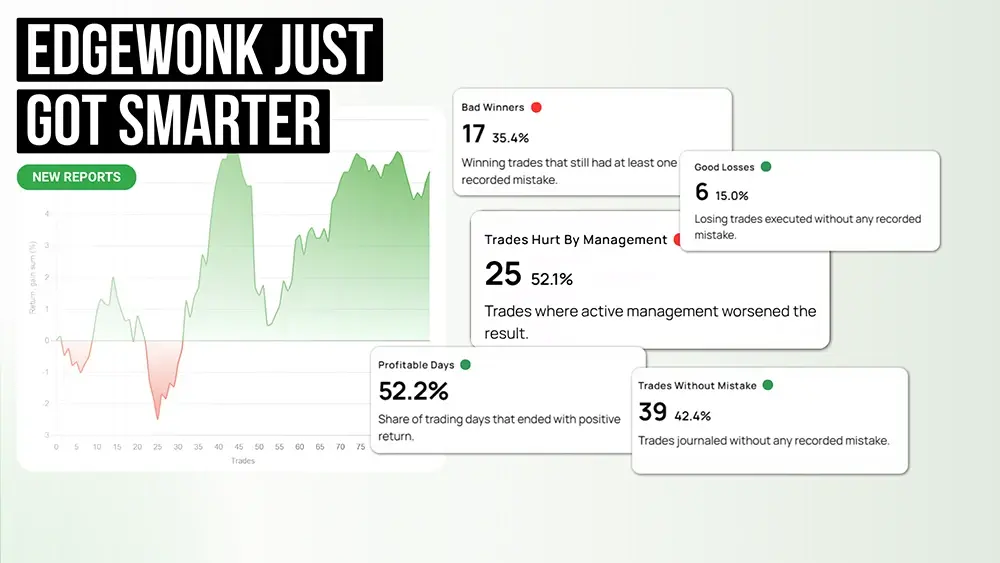
This week, Edgewonk received one major upgrade.
2 min read
TLDR: Edgewonk now displays trades in your local time instead of the broker’s time.
If your trade times are not shown correctly you will need to make a one-time adjustment.
Edgewonk can now show your trades in your local timezone instead of your broker’s timezone. Since broker timestamps often do not match your actual trading time, this setup helps ensure that your journal data is displayed correctly and prepared for upcoming features like API imports and chart visualizations.
The easiest way to do this is to open your broker platform and check the timestamp of the current candle or market time. Then compare it to your own local time.
Calculate the difference between your local time and your broker time.
Example 1
Your broker time: 4:45 pm
Your local time: 2:45 pm
Your broker is 2 hours ahead of your time. So you need to shift your already journaled trades back by 2 hours.
Example 2
Your broker time: 8:30 am
Your local time: 11:30 am
Your broker is 3 hours behind your time. So you need to shift your already journaled trades forward by 3 hours.
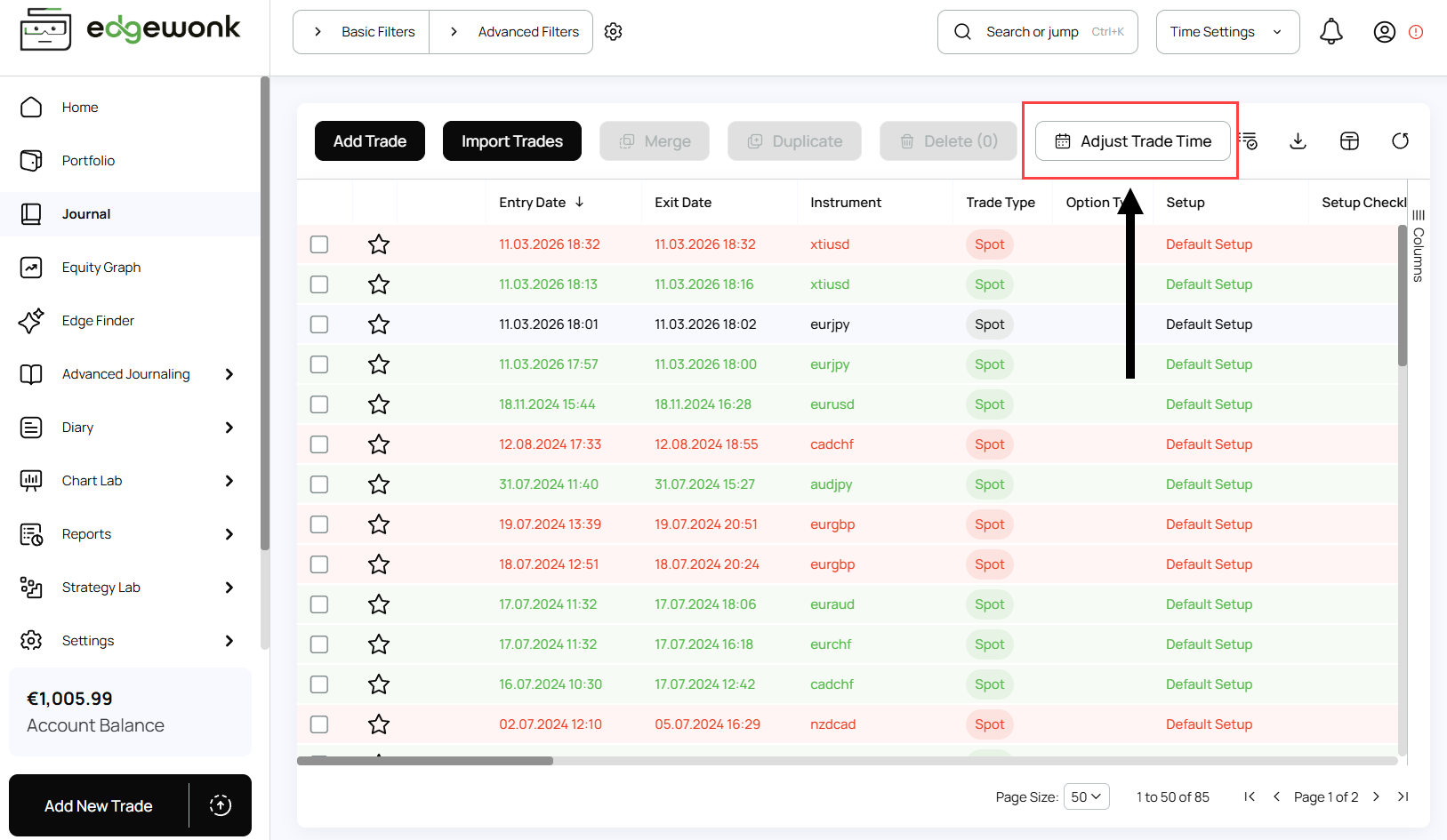
In Edgewonk, go to your Journal tab and click the Adjust Trade Time button.
Edgewonk will automatically select all trades in your journal.
Then use the -1 Hour or +1 Hour buttons to shift your trade times until they match your local timezone.
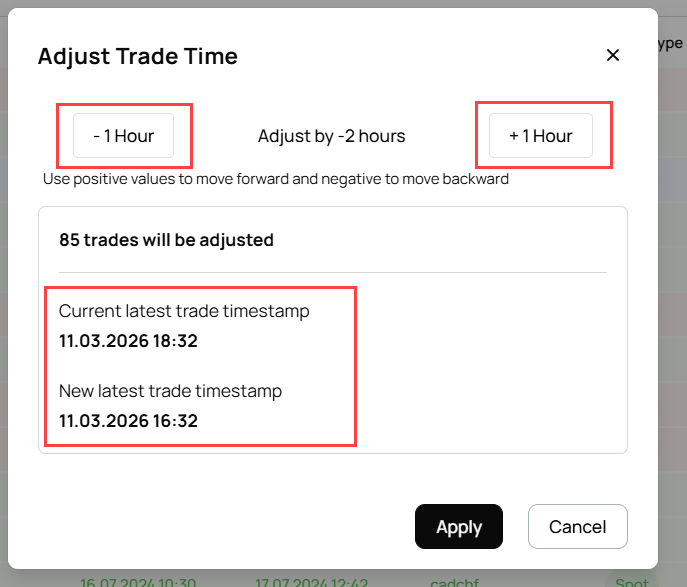
Use the exact difference you calculated in Step 1.
For example:
You are now ready to import your trades again and all future trade imports will match perfectly.
Open the Import window and look for Import Time Zone Settings. From the dropdown menu, select the timezone used by your broker.
To make this easier, Edgewonk displays the current time next to each timezone. Since you already checked your broker’s time in Step 1, you can simply match it to the correct option in the list.
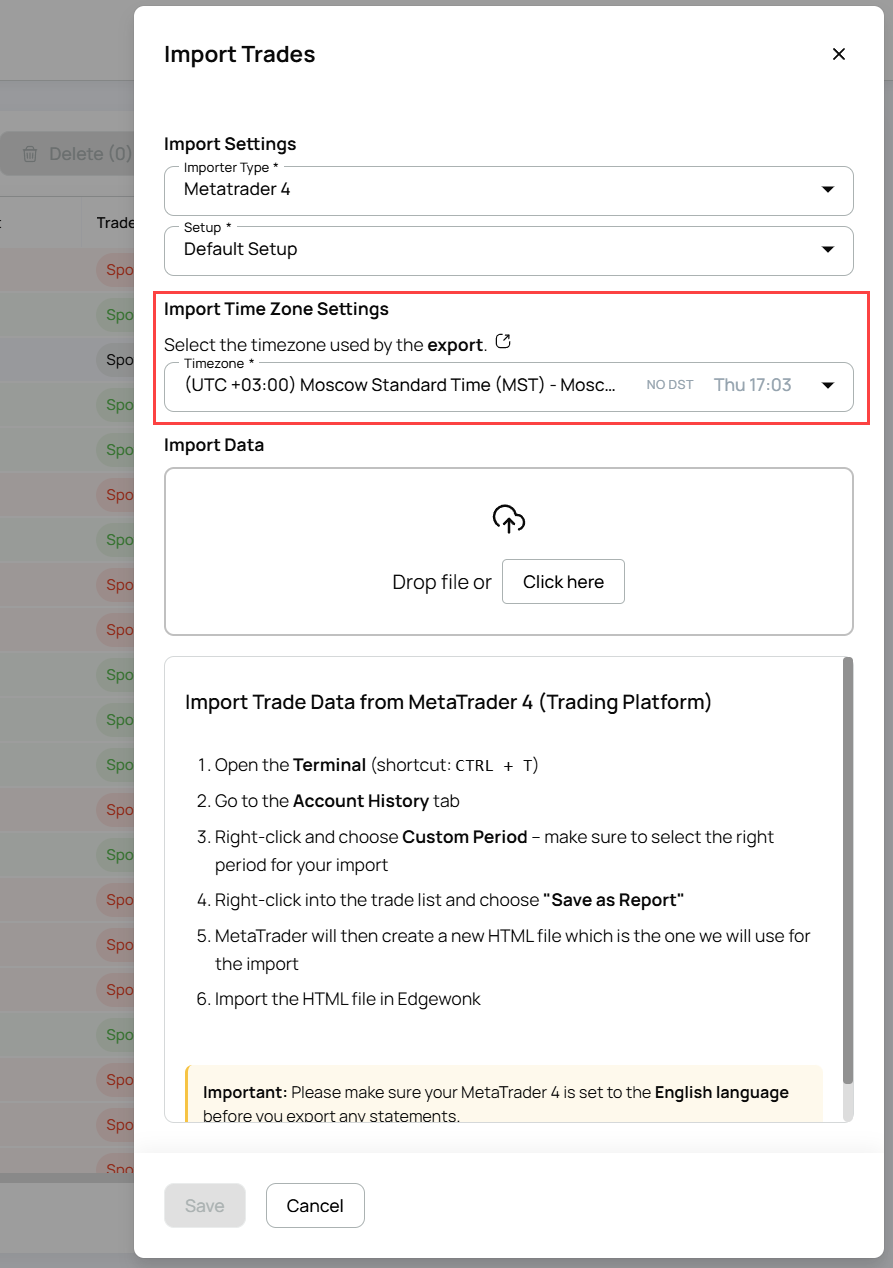
After selecting the correct broker timezone, all future imported trades will automatically be converted into your local timezone and all trades are in the exact same timezone within Edgewonk.
In the (near) future, we are going to add automatically created trade charts that visualize your entry, exit and stop loss. For that, however, it is crucial that all your trades are in the correctly determined timezone.
Secondly, we are adding direct API trade imports for various platforms. Therefore, we have to integrate the timezone settings.
Finally, with correctly set timezones, we will be able to provide additional, new features that are integrating real-time data to offer more in-depth analyses.
This week, Edgewonk received one major upgrade.
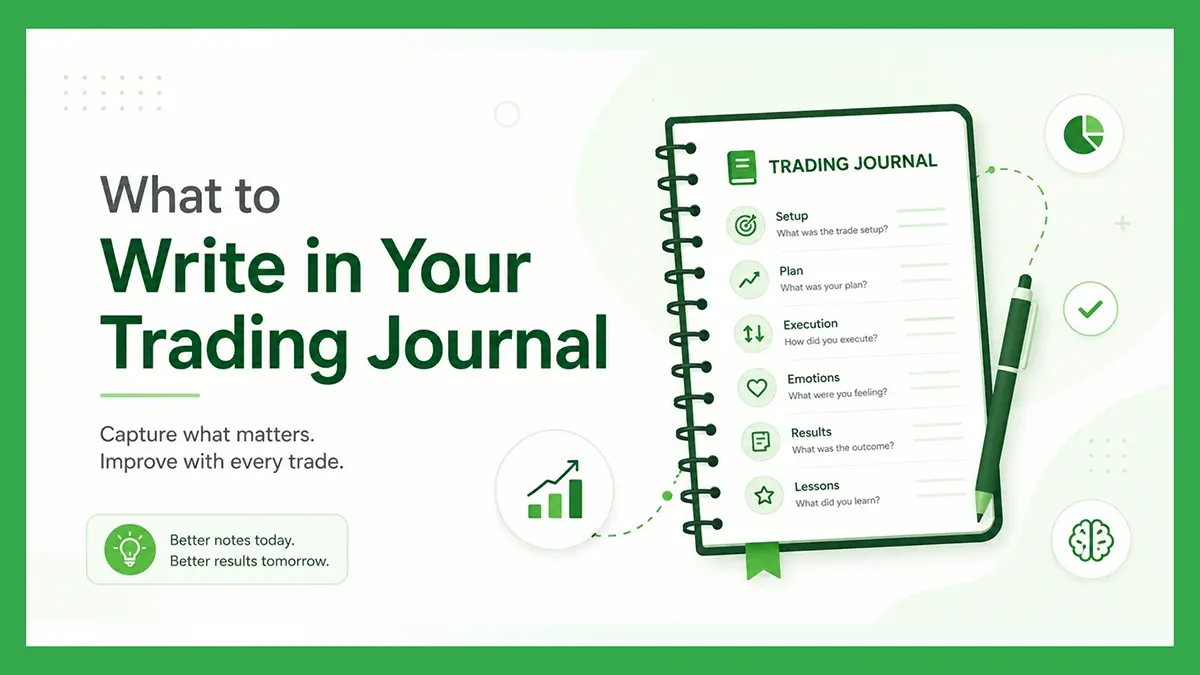
Many traders think of journaling as extra admin work after the trade is already over. But a good trading journal is not just a place where you store...
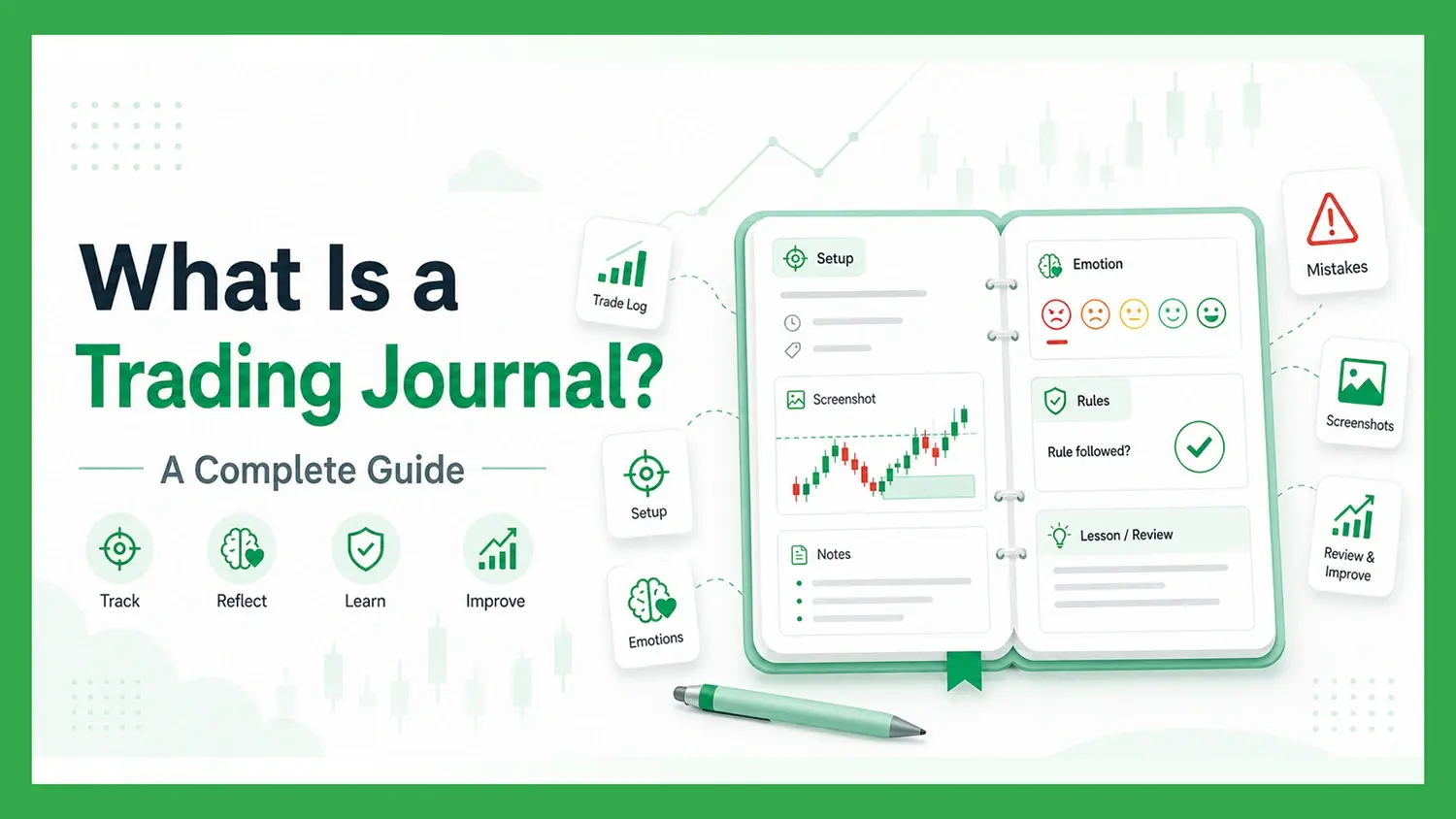
A trading journal is one of the most important tools a trader can use to improve their performance. It helps you record your trades, review your...