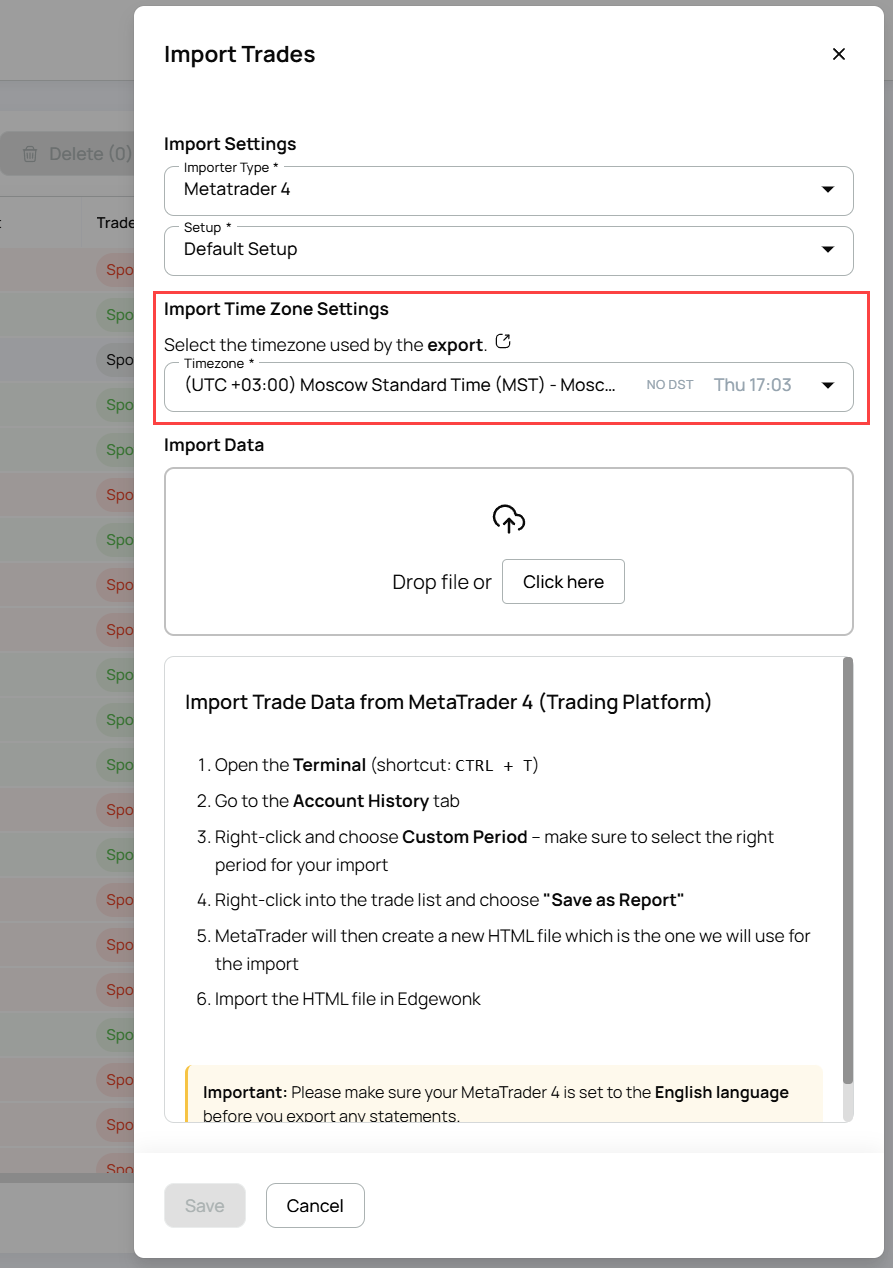
Step 2: Set the time zone in Edgewonk
Open the Import window and look for Import Time Zone Settings. From the dropdown menu, select the timezone used by your broker.
To make this easier, Edgewonk displays the current time next to each timezone.
Since you checked your broker’s time in Step 1, you can simply match it to the correct option in the list.
That's it. Now you are ready to import your trades once again.
Important: if you do not see the Import Time Zone Settings area in the menu, your broker already provides the time zone information and you don't have to do to anything.


 For New Traders
 For Breakeven Traders
 For Profitable Traders